> ## Documentation Index
> Fetch the complete documentation index at: https://doc.lwops.cn/llms.txt
> Use this file to discover all available pages before exploring further.

# 分组与标签用法说明

> 介绍乐维运维智能体平台中分组管理与标签管理的功能、用法与操作流程。

## 一、分组

###### 1. 概述

【系统管理】-【分组管理】提供对象分组管理能力，支持批量删除分组及通过指定、上移、下移快速调整分组排序。

###### 2. 用法

**（1）对象分组**

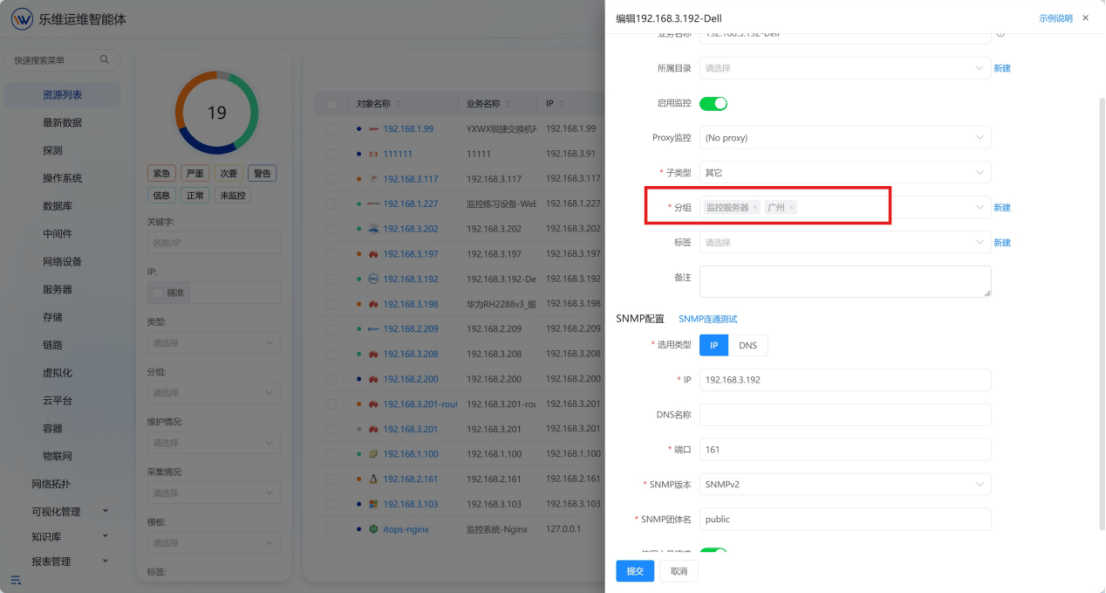
① 新建或编辑监控信息时，可将对象添加到分组；

<Frame>
  <img src="https://mintcdn.com/lerwee/wNpjAuv9qZ-08UBY/images/image-62.png?fit=max&auto=format&n=wNpjAuv9qZ-08UBY&q=85&s=f4ae402b24a060ea56aeaf72b7258f8c" alt="Image" width="1106" height="593" data-path="images/image-62.png" />
</Frame>

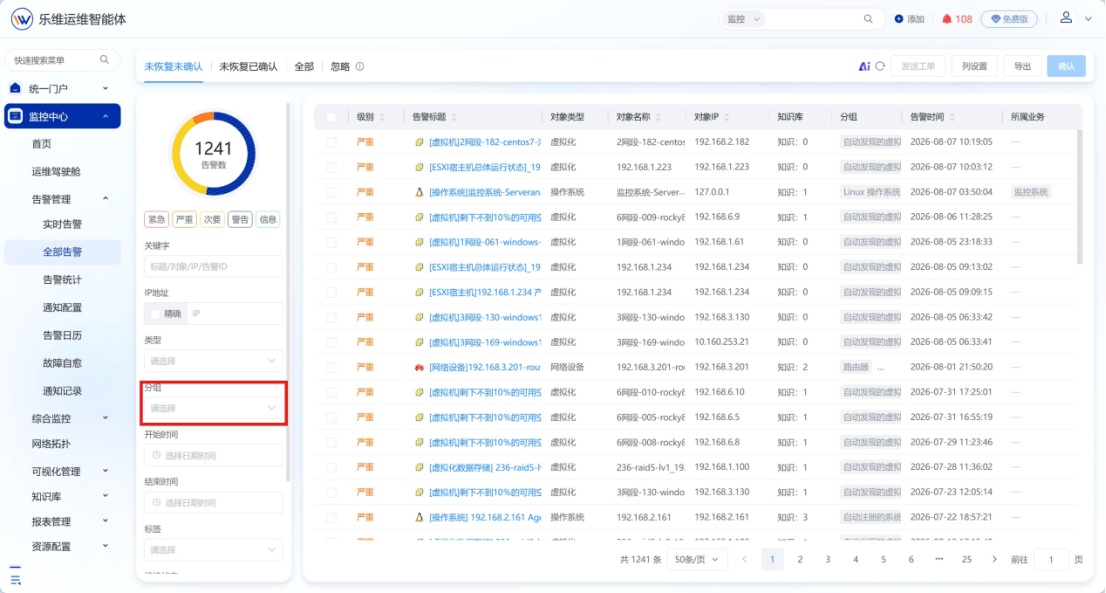
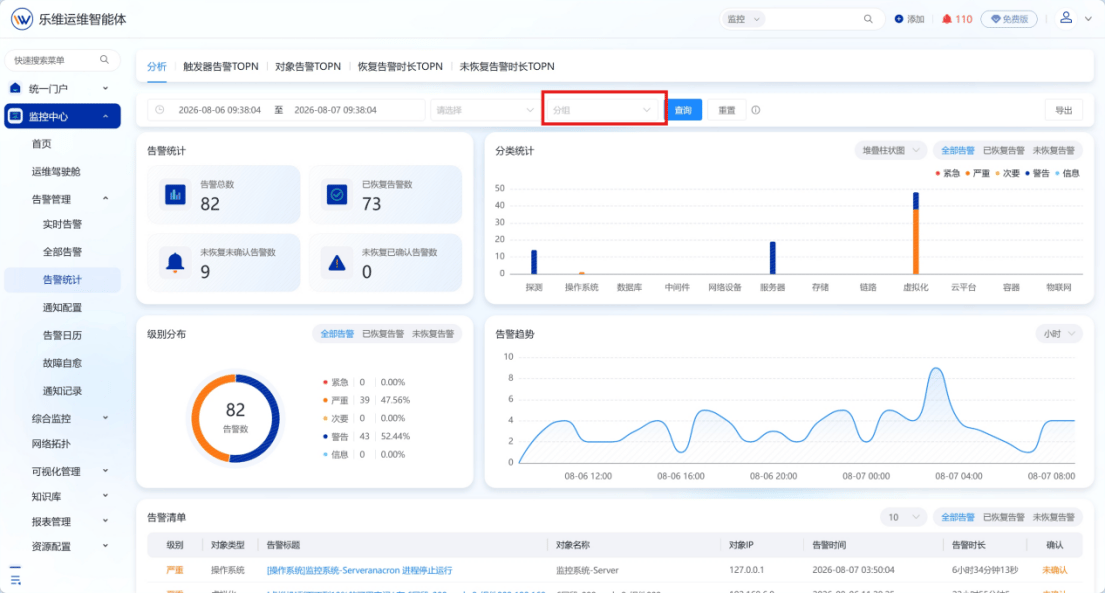
② 【综合监控】模块的子模块页面，左侧菜单栏提供分组视图或按分组筛选对象，便于快速定位各分组下的资源；

<Frame>
  <img src="https://mintcdn.com/lerwee/wNpjAuv9qZ-08UBY/images/image-63.png?fit=max&auto=format&n=wNpjAuv9qZ-08UBY&q=85&s=178cce78e1139165367ce112660c6d69" alt="Image" width="1106" height="593" data-path="images/image-63.png" />
</Frame>

<Frame>
  <img src="https://mintcdn.com/lerwee/wNpjAuv9qZ-08UBY/images/image-64.png?fit=max&auto=format&n=wNpjAuv9qZ-08UBY&q=85&s=fd5089391ad7aa5032f255936a454db8" alt="Image" width="1106" height="593" data-path="images/image-64.png" />
</Frame>

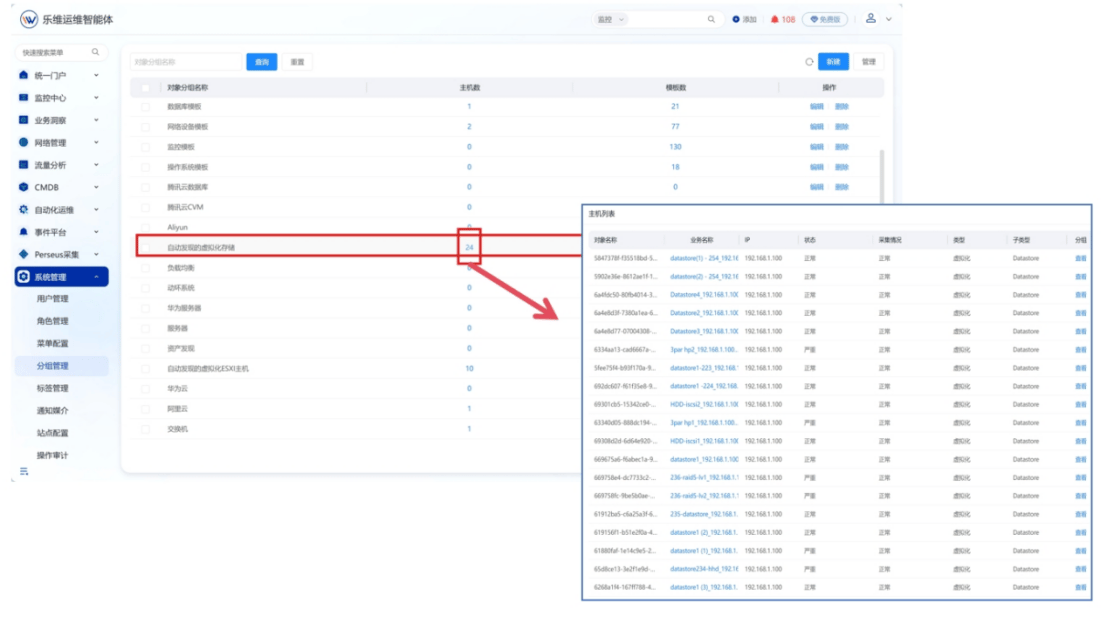
③ 进入【系统管理】-【分组管理】，可查看各分组内主机数量，点击对应数量即可跳转查看分组下的主机列表。

<Frame>
  <img src="https://mintcdn.com/lerwee/wNpjAuv9qZ-08UBY/images/image-65.png?fit=max&auto=format&n=wNpjAuv9qZ-08UBY&q=85&s=ef56cfa821329739ab4660b5ca1455a6" alt="Image" width="1107" height="618" data-path="images/image-65.png" />
</Frame>

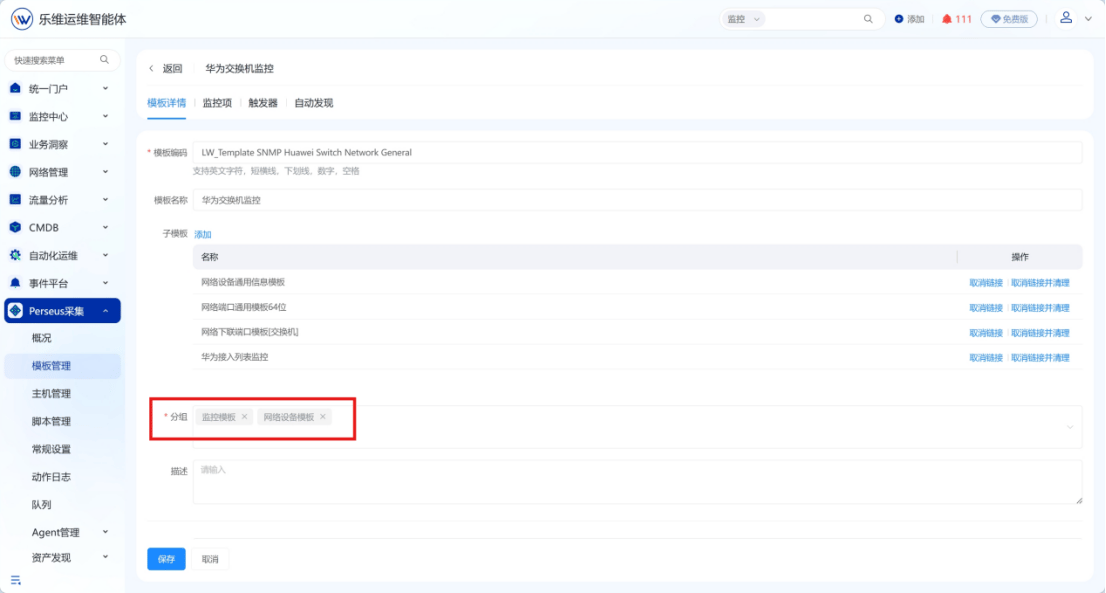
**（2）模板分组**

① 【Perseus 采集】-【模板管理】，可编辑模板并将其添加到分组；

<Frame>
  <img src="https://mintcdn.com/lerwee/wNpjAuv9qZ-08UBY/images/image-66.png?fit=max&auto=format&n=wNpjAuv9qZ-08UBY&q=85&s=cbd8c0cc5fdfad42ac1ca6addaf5280a" alt="Image" width="1106" height="593" data-path="images/image-66.png" />
</Frame>

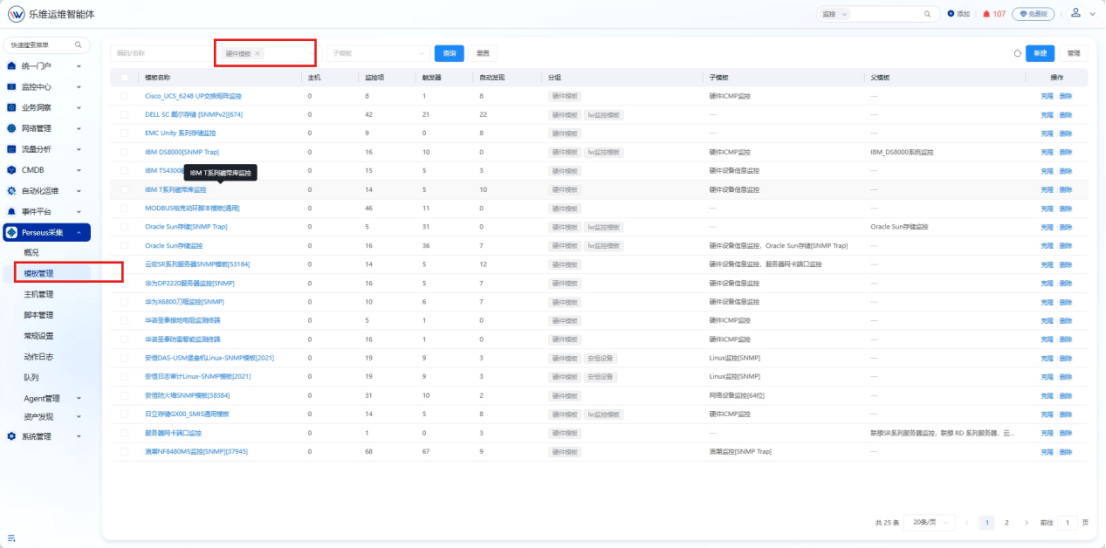
② 支持按分组筛选查看模板；

<Frame>
  <img src="https://mintcdn.com/lerwee/wNpjAuv9qZ-08UBY/images/image-67.png?fit=max&auto=format&n=wNpjAuv9qZ-08UBY&q=85&s=dd2d6499fd8e640848a213873d328a26" alt="Image" width="1106" height="548" data-path="images/image-67.png" />
</Frame>

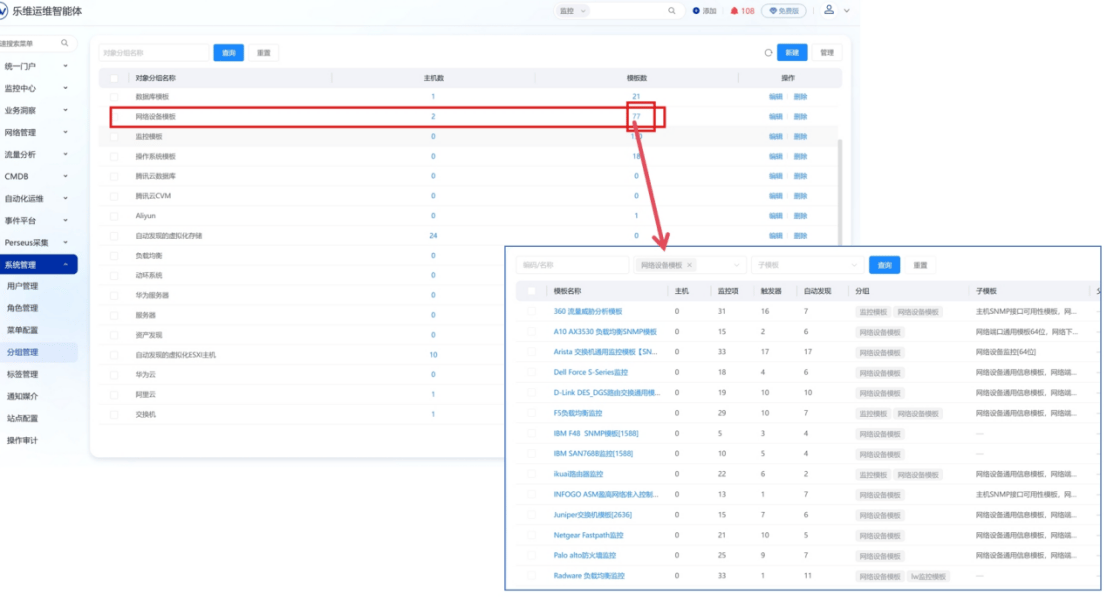
③ 进入【系统管理】-【分组管理】，可查看各分组内模板数量，点击对应数量即可跳转查看分组下的模板清单。

<Frame>
  <img src="https://mintcdn.com/lerwee/wNpjAuv9qZ-08UBY/images/image-68.png?fit=max&auto=format&n=wNpjAuv9qZ-08UBY&q=85&s=318d5b43ce00d4bd738eefb7493593ad" alt="Image" width="1108" height="602" data-path="images/image-68.png" />
</Frame>

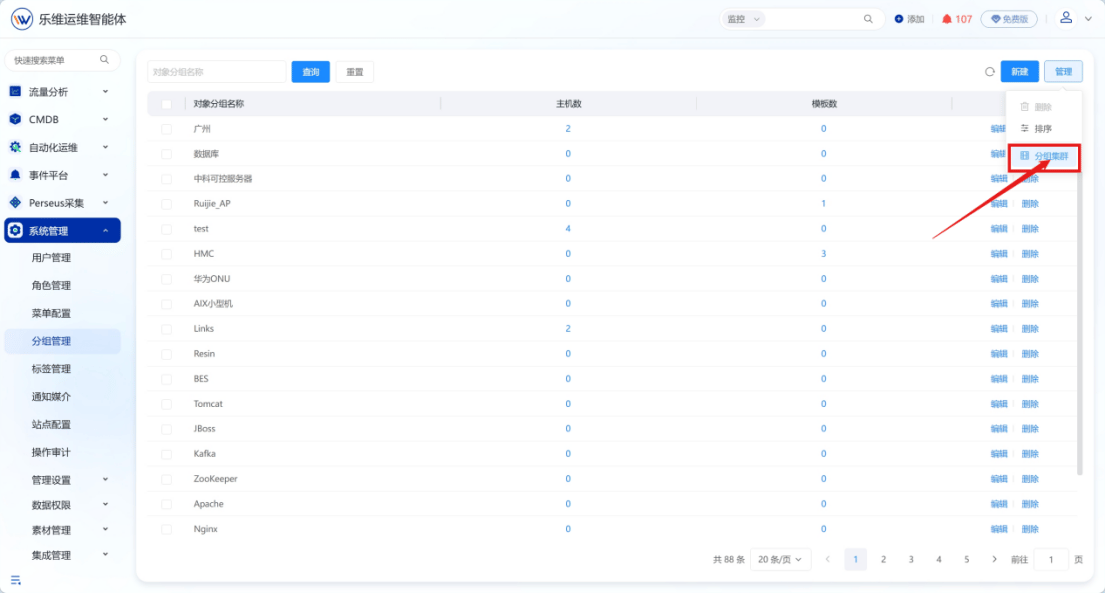
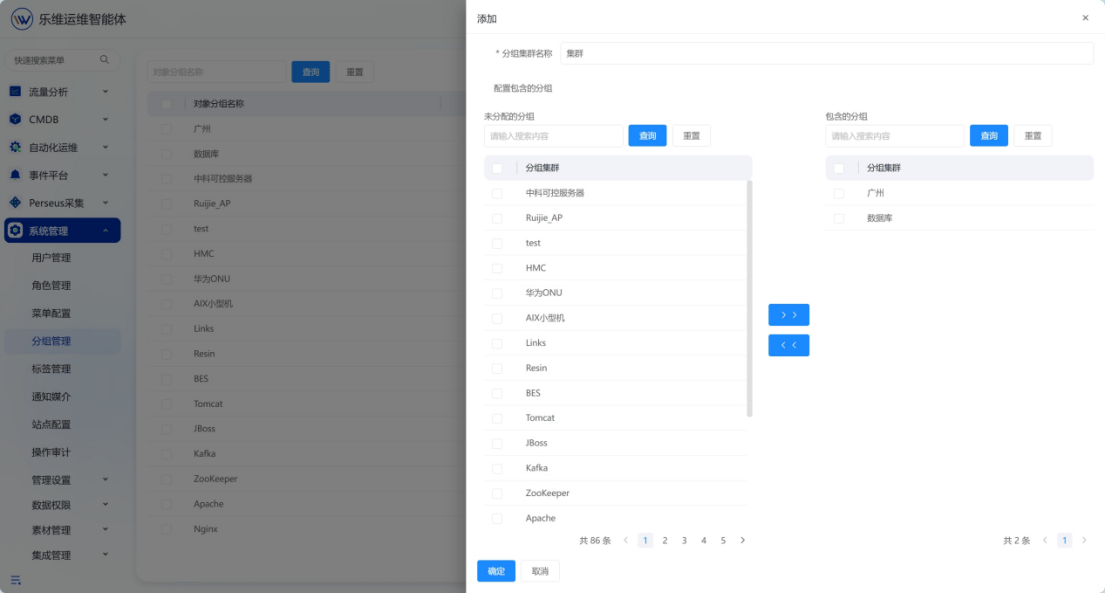
**（3）分组集群**

支持添加分组集群：

<Frame>
  <img src="https://mintcdn.com/lerwee/wNpjAuv9qZ-08UBY/images/image-69.png?fit=max&auto=format&n=wNpjAuv9qZ-08UBY&q=85&s=1742fc2b66abb743dc57525792f79874" alt="Image" width="1106" height="593" data-path="images/image-69.png" />
</Frame>

<Frame>
  <img src="https://mintcdn.com/lerwee/kWJAAJwVY7GYomJd/images/image-70.png?fit=max&auto=format&n=kWJAAJwVY7GYomJd&q=85&s=221fd8ae726d4d8ef72c0de00c2e6235" alt="Image" width="1106" height="593" data-path="images/image-70.png" />
</Frame>

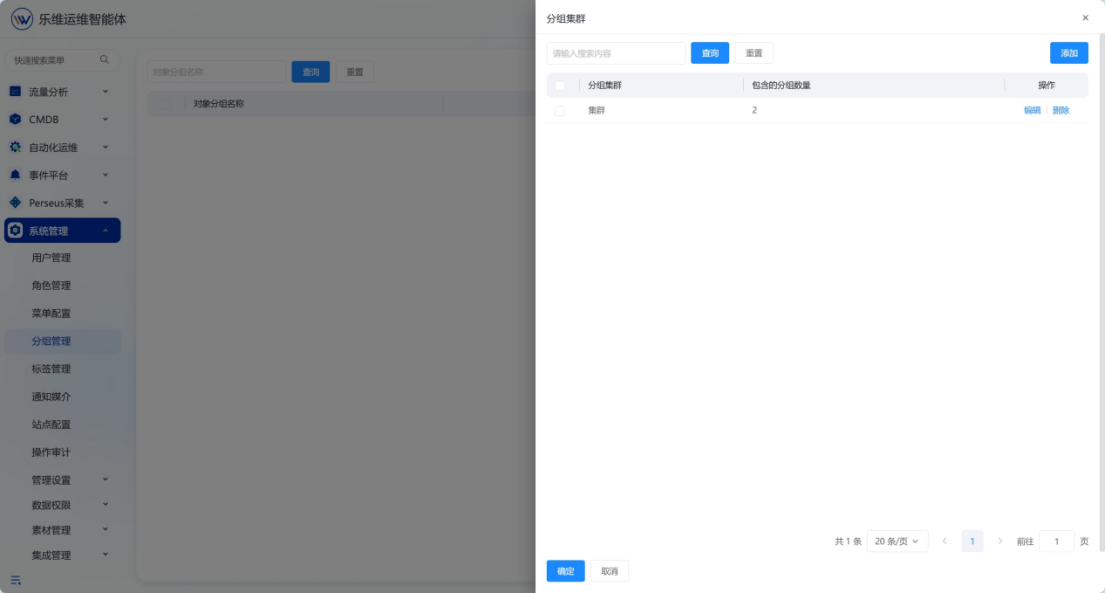
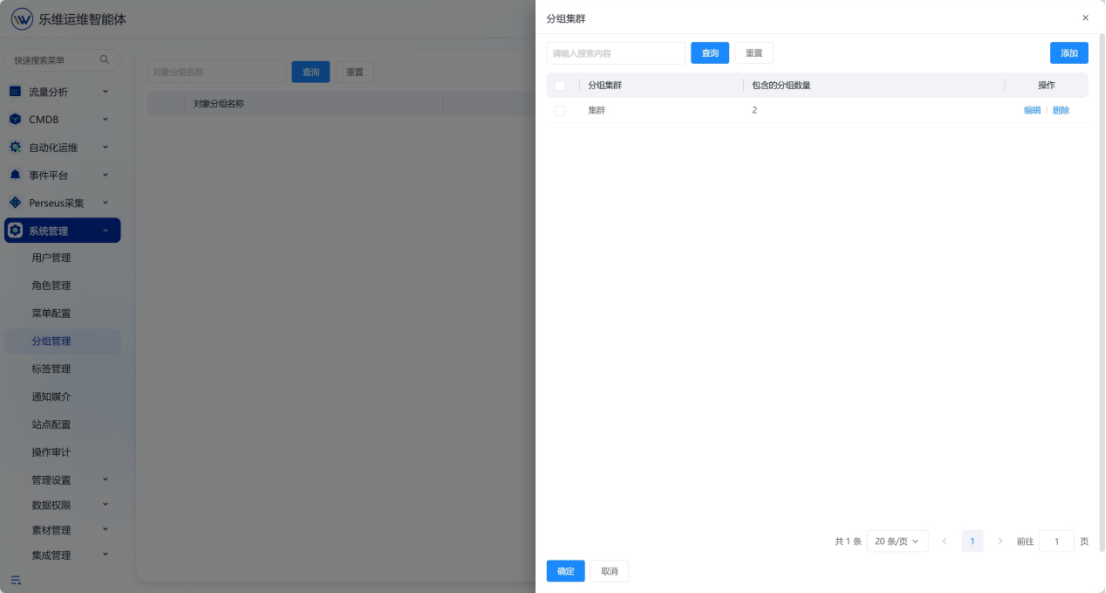
支持查看分组集群：

<Frame>
  <img src="https://mintcdn.com/lerwee/kWJAAJwVY7GYomJd/images/image-71.png?fit=max&auto=format&n=kWJAAJwVY7GYomJd&q=85&s=4112e6fad7b7728beab623eb580e15f3" alt="Image" width="1106" height="593" data-path="images/image-71.png" />
</Frame>

## 二、标签

###### 1. 概述

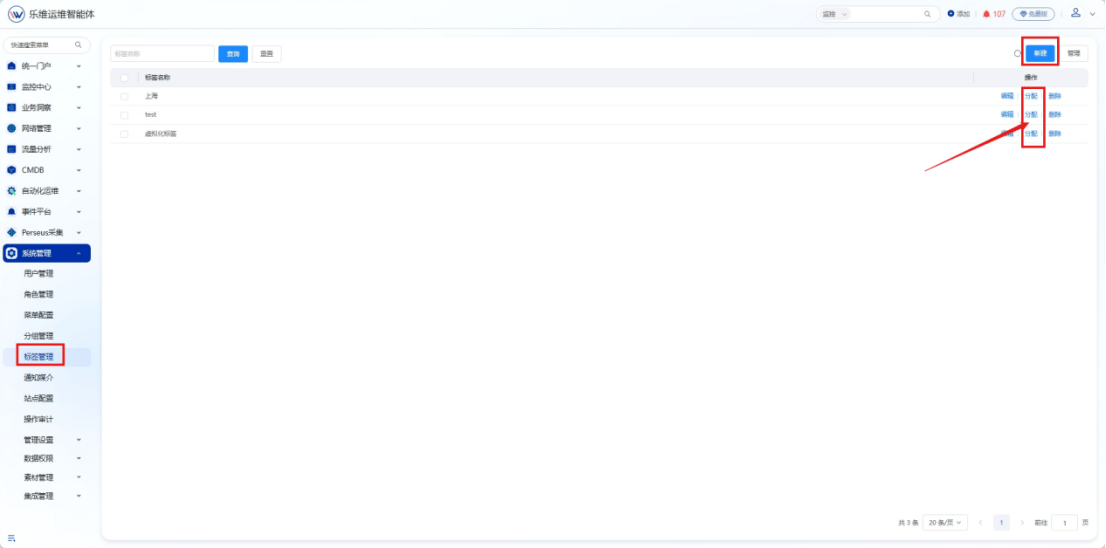
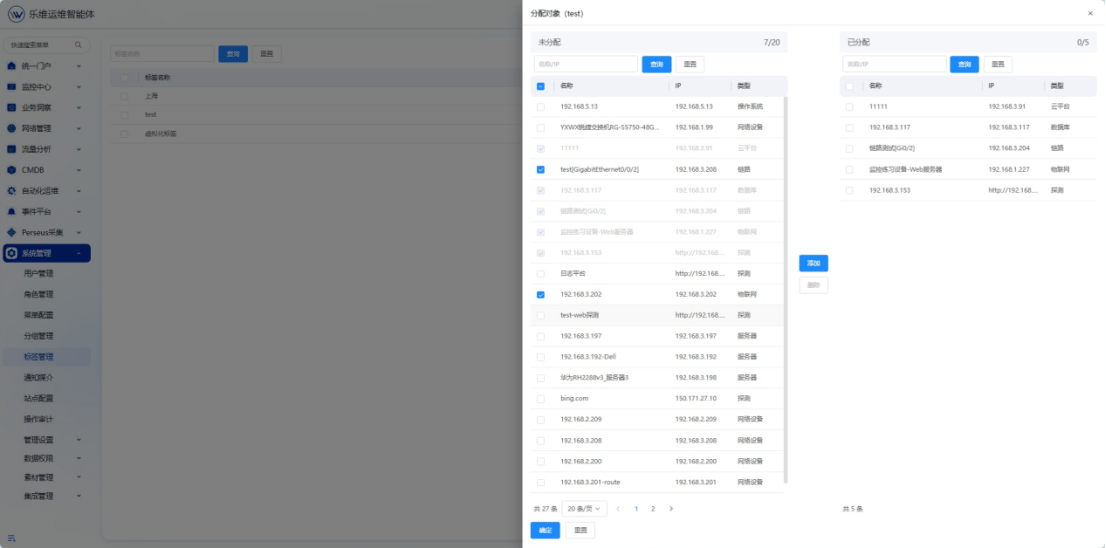
【系统管理】-【标签管理】支持自定义标签，可批量为标签分配多个监控对象，实现对象的标签化管理，支持置顶、上移、下移调整排序及批量删除。

###### 2. 用法

（1）新建或编辑监控对象信息时，可为其添加标签；

<Frame>
  <img src="https://mintcdn.com/lerwee/kWJAAJwVY7GYomJd/images/image-72.png?fit=max&auto=format&n=kWJAAJwVY7GYomJd&q=85&s=234ceefe3597d87db87943222dc573aa" alt="Image" width="1106" height="593" data-path="images/image-72.png" />
</Frame>

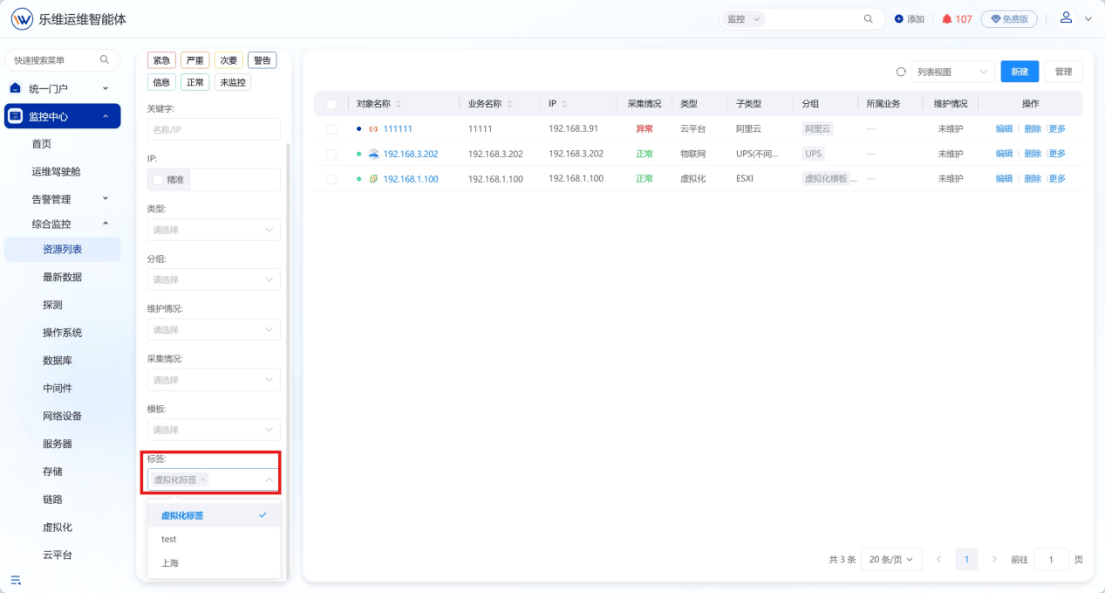
（2）左侧菜单栏支持按标签筛选对象；

<Frame>
  <img src="https://mintcdn.com/lerwee/kWJAAJwVY7GYomJd/images/image-73.png?fit=max&auto=format&n=kWJAAJwVY7GYomJd&q=85&s=f1fb5a75f6e0e9a2da666626cf9b7fd3" alt="Image" width="1106" height="593" data-path="images/image-73.png" />
</Frame>

（3）【系统管理】-【标签管理】新建标签后，点击"分配"可将监控对象批量分配给该标签。

<Frame>
  <img src="https://mintcdn.com/lerwee/kWJAAJwVY7GYomJd/images/image-74.png?fit=max&auto=format&n=kWJAAJwVY7GYomJd&q=85&s=bfd6d1f95663bce6b7907e2534f75498" alt="Image" width="1106" height="548" data-path="images/image-74.png" />
</Frame>

<Frame>
  <img src="https://mintcdn.com/lerwee/kWJAAJwVY7GYomJd/images/image-75.png?fit=max&auto=format&n=kWJAAJwVY7GYomJd&q=85&s=0ea8c7cccd8507b05affee1f9db82b7e" alt="Image" width="1106" height="548" data-path="images/image-75.png" />
</Frame>